
التصوير الحراري "يرى" العالم: أسرار الأشعة تحت الحمراء التي لا تعرفها
15 أغسطس 2025دليل الوحدات الحرارية لعام 2025: تكامل منخفض التكلفة وسريع للمهندسين | حلول وحدات التصوير الحراري المصغرة 384/640
30 سبتمبر 2025
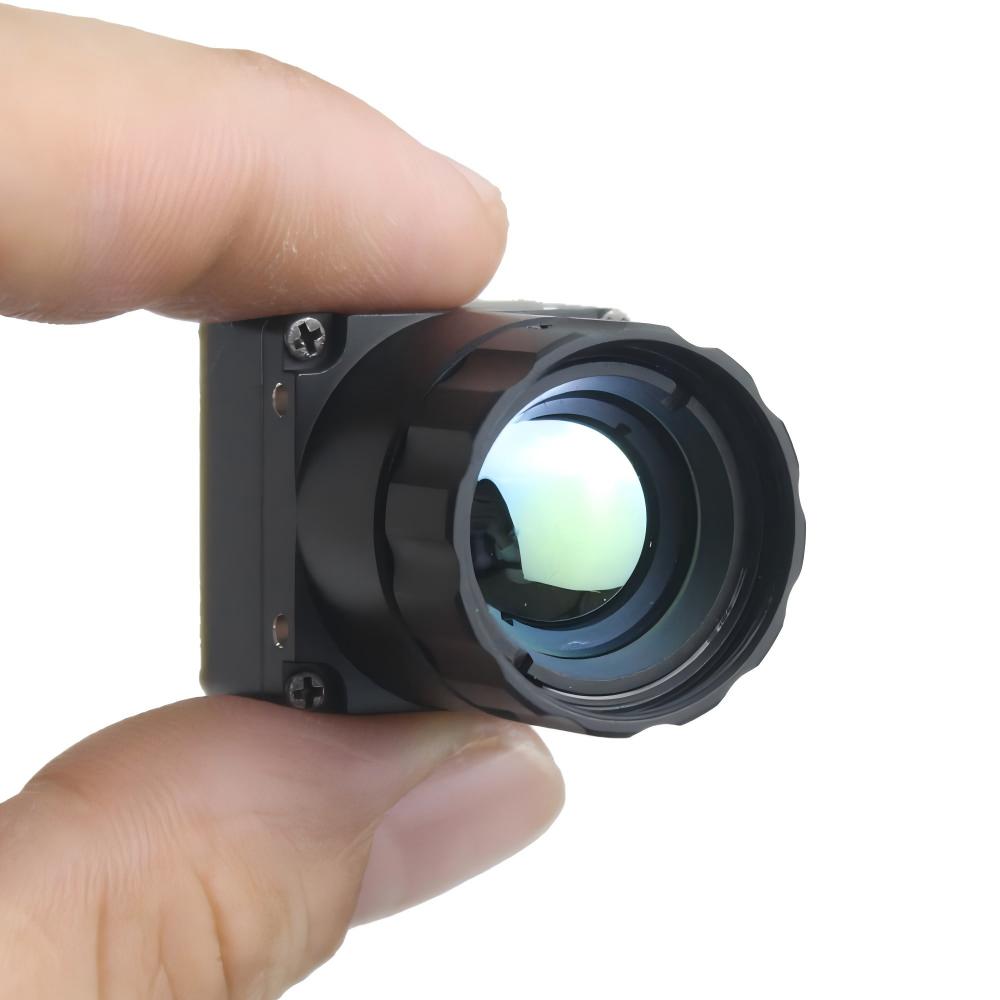
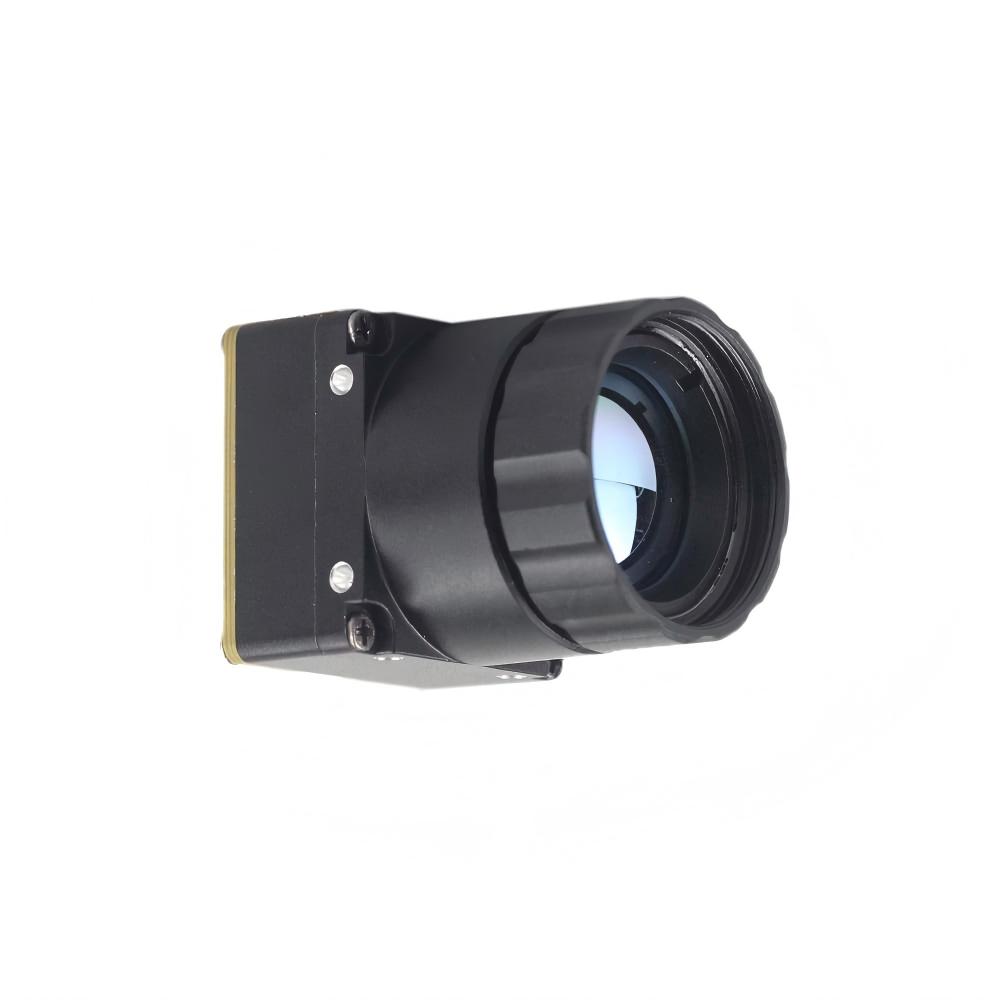
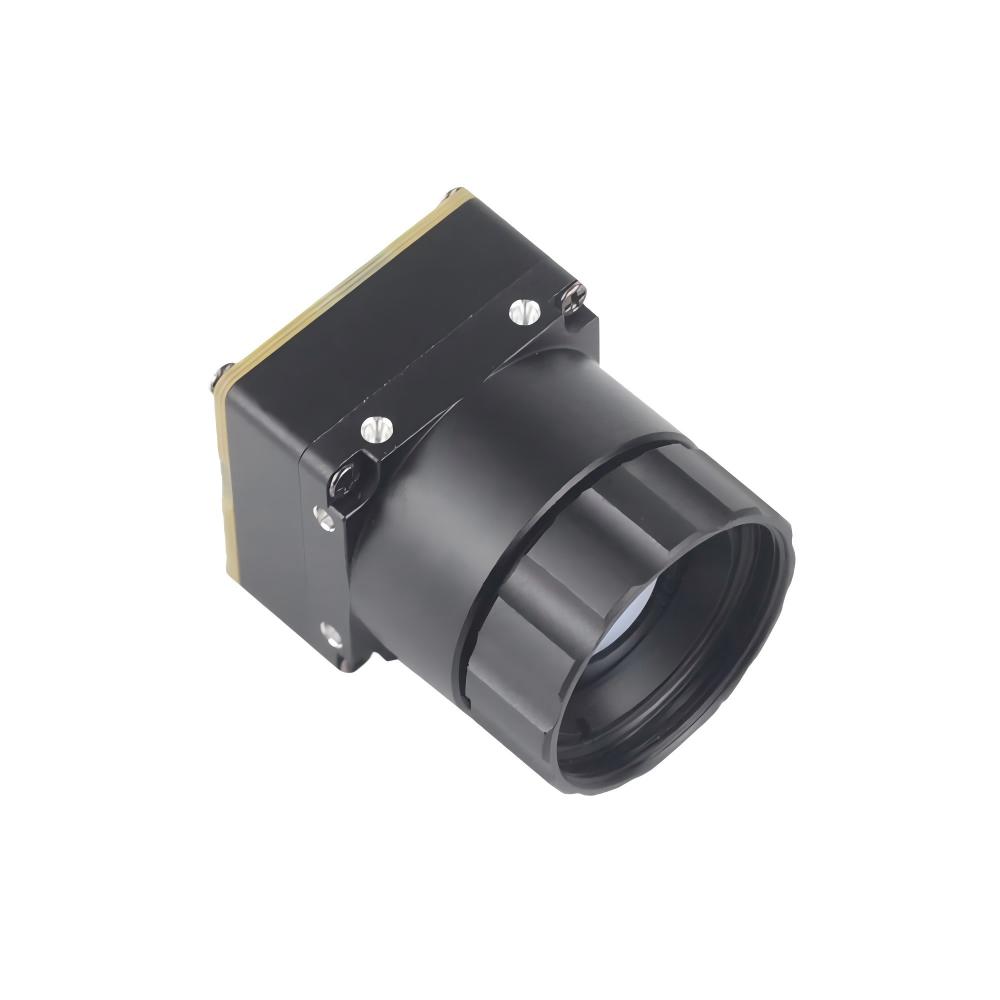
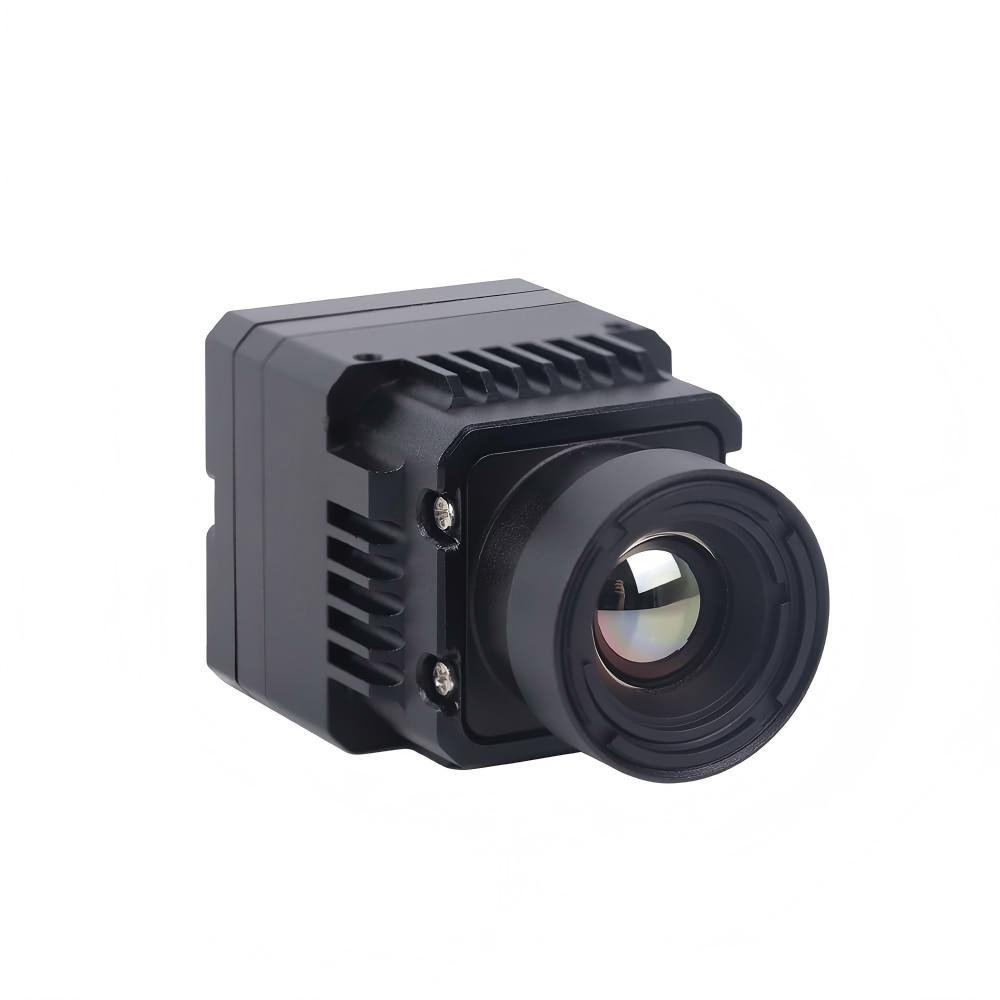
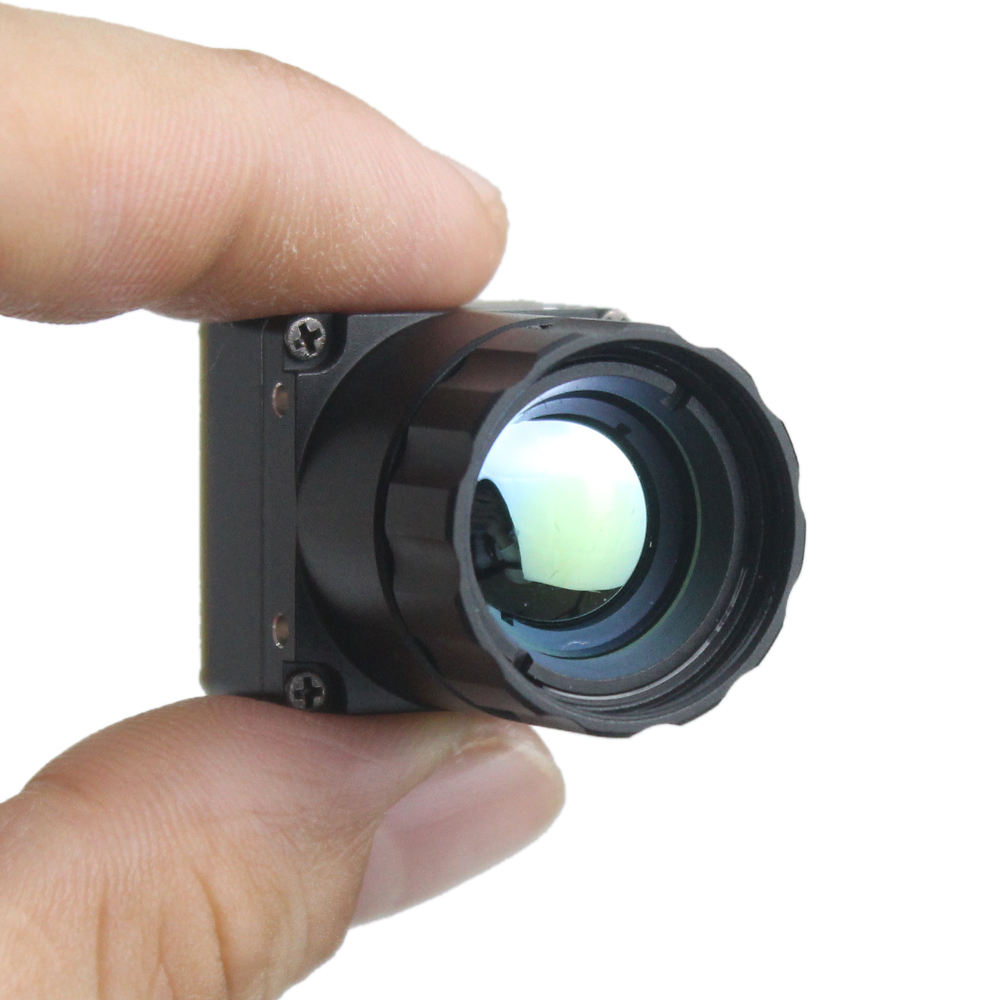
هذا التعريف مخصص لـ "وحدة الكاميرا الحرارية "mini2" المشار إليها باسم rs300 في التعريف الأصلي.
بعض المواصفات الأساسية
"mini2" هي كاميرا تصوير حراري تأتي بدقات متعددة. لقياسات درجة الحرارة، يلزم وجود وحدة أو إصدار مختلف.
الدقات المتاحة هي:
- 256x192 - 25/50 هرتز (25/50 هرتز متاحة عبر USB)
- 384x288 - 30/60 هرتز (30/60 هرتز متاحة عبر USB)
- 640x512 - 30/60 هرتز (60 هرتز غير مدعومة عبر USB)
NETD: 40 ملي كلفن
طرق إخراج الفيديو
يمكن لهذه الوحدة إخراج دفقين فيديو متزامنين. أحدهما رقمي والآخر تناظري.
USB 2.0
- وحدة 640 محدودة بـ 30 إطارًا في الثانية عبر USB.
- الكاميرا متوافقة مع UVC وستعمل بنفس طريقة كاميرا الويب، لكن عناصر التحكم في الكاميرا غير مكشوفة. بالنسبة لوحدة 256، يمكنك حتى تبديل معدل الإطارات من 25 إطارًا في الثانية إلى 50 إطارًا في الثانية في تطبيقات الكاميرا القياسية.
- تنسيق البكسل هو YUYV422 ولكن يمكنك تغييره إلى ترتيب مختلف مثل UYVU باستخدام SDK.
- لإرسال أوامر إلى الكاميرا عبر USB، مثل تغييرات السطوع، ومعايرة الغالق، وتغيير خرائط الألوان، ستحتاج إلى استخدام SDK المقدم. SDK مخصص لنظامي التشغيل windows و linux.
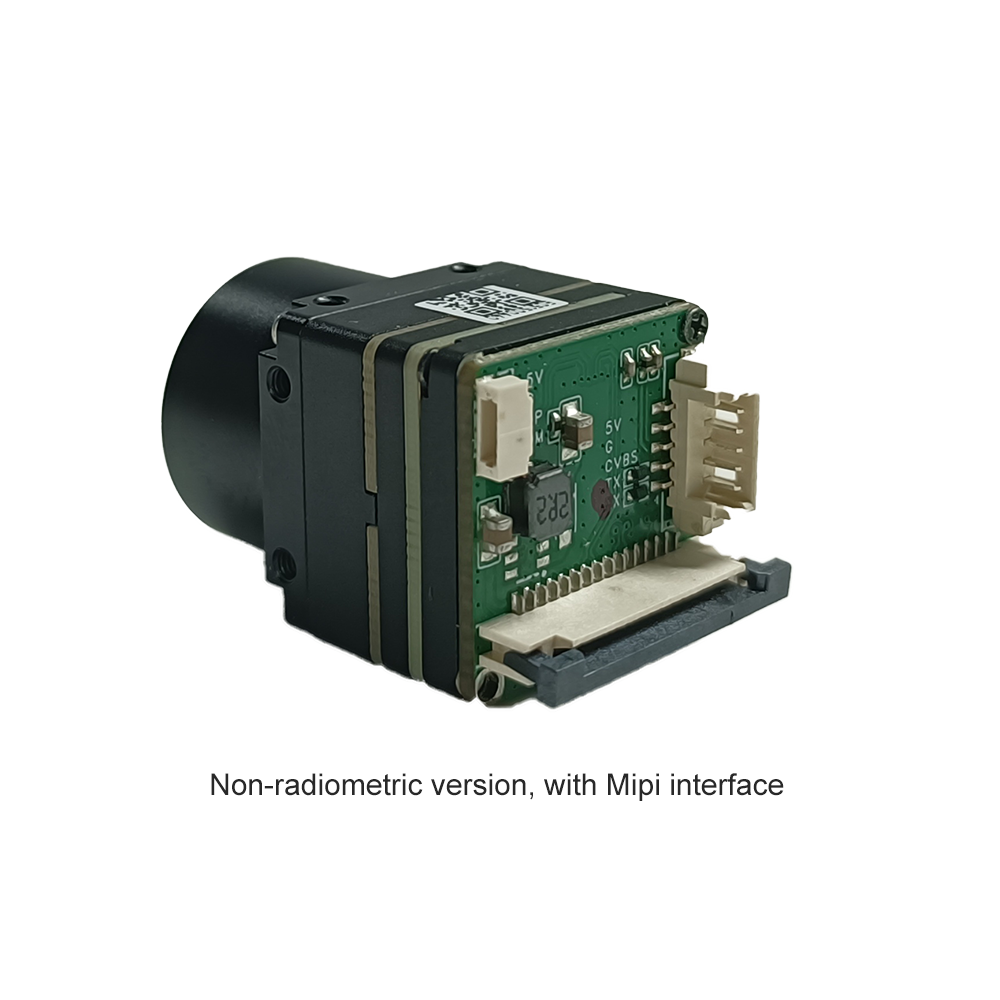
MIPI
- يسمح بـ 60 إطارًا في الثانية رقميًا مع وحدة 640.
- تحتوي لوحة الدوائر المطبوعة المخصصة على موصل ذي 15 سنًا متوافقًا مع منفذ كاميرا MIPI CSI-2 في RPi 4B. يمكنك استخدام كابل محول من 15 إلى 22 سنًا لتوصيل RPi 5 و 0 و CM.
- يستخدم تعريف rs300 للاتصال بـ Pi. تنفيذ أوامر الكاميرا عبر I2C دون الحاجة إلى أي SDK أو ملفات ثنائية مجمعة مسبقًا. بقدر ما تستطيع من الأوامر، يمكنك جعلها متوافقة مع V4L2 لسهولة التكامل.
CVBS
- يمكن ضبط الإخراج التناظري على NTSC أو PAL.
- يمكن إخراجه بالتزامن مع USB أو MIPI.
- يتم عرض خرائط الألوان الأبيض الحار والأسود الحار فقط. حتى الآن، يبدو أن جميع المعلمات الأخرى تؤثر بالتساوي على دفق الفيديو التناظري مثل؛ السطوع، والتباين، وتقليل الضوضاء، وتحسين التفاصيل الرقمية (DDE)، والتكبير/التصغير الرقمي.
التثبيت
المتطلبات الأساسية
- Raspberry Pi مع نظام Raspbian/Raspberry Pi OS Bookworm (لم يتم اختبار Bullseye)
- تثبيت ترويسات Linux
- دعم DKMS
البناء والتثبيت
تثبيت الترويسات المطلوبة:
sudo apt install linux-headers dkms git
تعديل التعريف قبل البناء. سيتم تحسين هذا قريبًا بحيث يمكن ضبطه دون تعديل كود التعريف
static int mode = 2; //0-640; 1-256; 2-384
static int fps = 60; //256: 25/50fps, 384/640: 30/60fps
تشغيل سكريبت الإعداد:
git clone https://github.com/Kodrea/rs300-v4l2-driver.git
cd /rs300-v4l2-driver
تعديل التعريف لاختيار الوحدة
sudo nano rs300.c
chmod +x setup.sh
./setup.sh
في ملف config.txt الخاص بك، أضف التراكب
sudo nano /boot/firmware/config.txt
ثم أضف
camera_auto_detect=0
dtoverlay=rs300
Then reboot
sudo reboot
Usage
Viewing Device Information
The camera should now be linked to the Raspberry Pi's Unicam driver and available on /dev/video0 Get basic information about the Unicam bridge driver:
v4l2-ctl --list-devices
v4l2-ctl --all -d /dev/video0
The actual camera is registered as a sub device in the driver
v4l2-ctl -d /dev/v4l-subdev0 --list-ctrls
Testing Video Capture
Set the format resolution for the appropriate module
Mini2-256
v4l2-ctl -d /dev/video0 --set-fmt-video=width=256,height=192,pixelformat=YUYV
Mini2-384
v4l2-ctl -d /dev/video0 --set-fmt-video=width=384,height=288,pixelformat=YUYV
Mini2-640
v4l2-ctl -d /dev/video0 --set-fmt-video=width=640,height=512,pixelformat=YUYV
gstreamer
gstreamer and has been faster than ffmpeg for me first install this
sudo apt install gstreamer1.0-tools
set test-overlay=false to remove fps counter
Mini2-256
gst-launch-1.0 v4l2src device=/dev/video0 ! video/x-raw,format=YUY2,width=256,height=192,framerate=50/1 ! videoconvert ! fpsdisplaysink video-sink=autovideosink text-overlay=true
Mini2-384
gst-launch-1.0 v4l2src device=/dev/video0 ! video/x-raw,format=YUY2,width=384,height=288,framerate=60/1 ! videoconvert ! fpsdisplaysink video-sink=autovideosink text-overlay=true
Mini2-640
gst-launch-1.0 v4l2src device=/dev/video0 ! video/x-raw,format=YUY2,width=640,height=512,framerate=60/1 ! videoconvert ! fpsdisplaysink video-sink=autovideosink text-overlay=true
Camera Controls
use v4l2 controls
this triggers the ffc shutter calibration
v4l2-ctl -d /dev/v4l-subdev0 --set-ctrl=ffc_trigger=0
Change colormaps
v4l2-ctl -d /dev/v4l-subdev0 --set-ctrl=colormap=3
Common Issues and Solution
- Wrong resolution: Make sure to set the stream to your modules resolution. By default the Unicam driver will have it as 640x480
Troubleshooting
If experiencing issues:
- Check kernel messages:
dmesg | grep rs300 - In a seperate terminal:
dmesg wH - Verify I2C connection:
i2c-detect -y 1 - Check for device:
ls -la /dev/video* - I started getting a message that postinst wasn't running, but it's only needed for the first time or if changes to the device tree overlay are made
./setup.sh
sudo sh /usr/src/rs300-0.0.1/dkms.postinst
Various Other Commands I used for troubleshooting
TODO: Cleanup this section
cd rs300-v4l2-driver
chmod +x setup.sh dkms.postinst
Install DKMS if not already installed
sudo apt install linux-headers dkms git
Run the setup script
Check DKMS status and if module is loaded
dkms status
lsmod | grep rs300
modinfo rs300
check i2c devices
ls /dev/i2c*
i2cdetect -l
i2cdetect -y 10 # right now it's bus 10 for me
i2cdump -f -y 10 0x3c # i2c 10, 0x3c is your device address
check v4l2 devices
ls /dev/video*
v4l2-ctl --list-devices
v4l2-ctl -d /dev/video0 --all
# List supported formats
v4l2-ctl -d /dev/video0 --list-formats-ext
# List supported controls
v4l2-ctl -d /dev/video0 --list-ctrls
# Show current input/output
v4l2-ctl -d /dev/video0 --info
set v4l2 parameters manually; resolution, fps, etc
v4l2-ctl -d /dev/video0 --set-fmt-video width=256,height=192,pixelformat=YUYV
v4l2-ctl -d /dev/video0 --set-fmt-video=width=640,height=512,pixelformat=YUYV
v4l2-ctl --stream-mmap -d /dev/video0 -o test.yuv
ffplay -f v4l2 -input_format yuyv422 -video_size 256x192 -i /dev/video0
ffplay -f v4l2 -input_format yuyv422 -video_size 640x512 -i /dev/video0
Rebuild the module
cd rs300-v4l2-driver
./setup.sh
Check after rebuild and reboot
i2cdetect -l
i2cdetect -y 10
lsmod | grep rs300
dmesg | grep -i rs300
modinfo rs300
media-ctl -p
ls /dev/v4l-subdev*
v4l2-ctl --list-devices
v4l2-ctl -d /dev/video0 --all
v4l2-ctl -d /dev/video0 --list-ctrls
v4l2-ctl -d /dev/v4l-subdev0 --list-ctrls
v4l2-ctl -d /dev/video0 --list-formats-ext
vcgencmd get_camera
v4l2-ctl -d /dev/v4l-subdev0 --all
sudo cat /dev/kmsg | grep rs300
v4l2-ctl -d /dev/video0 --stream-mmap -o test.yuv
sudo dmesg -wH
ffplay -f video4linux2 -input_format yuyv422 -video_size 256x192 -i /dev/video0
ffplay -f video4linux2 -input_format yuyv422 -video_size 640x512 -i /dev/video0